Map, reporting, and guests
Flows
Help people find a bin and tell the story clearly
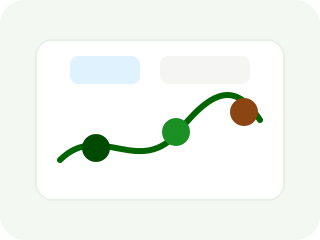
Most reports start on the map or from a QR label on the bin. Guests can explore and draft. Sending the report needs a short verification step so the campus can trust who submitted it.
Find the place
- Open the campus map.
- Search, pan, or scan the label on the bin.
- Open the place sheet for that bin.
- Choose report when you are ready.
Phone location may be collected as supporting context. It is not the only way a report is trusted.
Capture good evidence
Guests and “I’m seeing this too”
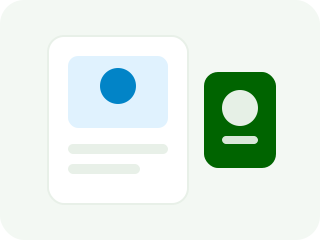
Visitors can use the map, Learn, and report steps without an account. Submitting requires verification (for example email and campus identity fields your school uses). If the same problem is already open, the product records a confirmation instead of a second open ticket. That is a feature, not a bug.
- As a guest, open the map and find a training bin.
- Start a report, add two photos, and complete verification.
- Ask a colleague to open the same issue and confirm they see it too.
If the network is weak, wait for the success state before leaving the page. Offline drafts sync when the phone reconnects.